
Mighty Accounting API
The Mighty Accounting API lets you read and create accounting data in your Mighty organisation from your own code — or from an AI assistant such as Claude, using the built-in MCP server.
Everything is authenticated with an organisation API key that you create yourself in the Mighty app. A key works for one organisation only, and takes about a minute to set up.
What you can do
Connect an AI assistant and it gains twenty-six tools:
| Tool | What it does |
|---|---|
get_dashboard |
Reads your dashboard figures: bank balance, net profit, corporation tax, VAT liability, dividends available, invoices outstanding. |
refresh_dashboard |
Recalculates those figures when they are out of date. |
list_sales_invoices |
Lists sales invoices, credit notes and direct sales, newest first, with optional filters. |
get_sales_invoice |
Fetches one invoice with its lines and payments. |
create_sales_invoice |
Creates an invoice — as a draft, or raised straight onto the accounts. |
list_bank_accounts |
Lists your active bank accounts and how many transactions each still has to categorise. |
list_unreconciled_bank_transactions |
Lists bank transactions waiting to be categorised, with any draft already saved. |
list_bank_categories |
The categories a transaction can go to, as shown in the app, with VAT defaults and matching rules. |
list_bank_match_candidates |
Unpaid invoices, dividends, payroll runs, VAT returns or transfers a transaction could be matched to. |
get_bank_transaction_documents |
Lists the receipts attached or linked to a transaction, with anything Mighty's scan found. |
read_bank_transaction_document |
Returns an attached receipt (image or PDF) so the assistant can read it. |
save_bank_transaction_draft |
Saves a categorisation as a draft for you to approve — nothing is posted to the accounts. |
clear_bank_transaction_draft |
Removes a draft categorisation. |
list_postbox_documents |
Lists the receipts and invoices in your Post Box with what Mighty's scan read from each, and the bank payment it suggests. |
get_postbox_document |
Fetches one Post Box document: its scanned details, and what it became if it has been used. |
read_postbox_document_file |
Returns the Post Box file itself (image or PDF) so the assistant can read it. |
create_expense_from_postbox_document |
Creates an expense from a Post Box document, for you to check and finalise. |
match_postbox_document_to_bank_transaction |
Attaches a Post Box document to a bank transaction as its receipt — the payment is not categorised or approved. |
list_mileage_claimants |
The people a mileage claim can be recorded for, with the miles each has claimed this tax year. |
list_mileage_claims |
Lists mileage claims, newest journey first, by person and date range. |
lookup_mileage_distance |
The driving distance in miles between two places. |
create_mileage_claim |
Records a mileage claim — posted to the accounts straight away, at the rate Mighty works out. |
list_accounting_periods |
Lists your accounting periods, so you can ask for a report on one of them. |
get_trial_balance |
Every nominal account with its debit, credit and balance. |
get_profit_and_loss |
Income and expenditure for the period, plus net profit and estimated corporation tax. |
get_balance_sheet |
Assets, liabilities and reserves as at the period end. |
So you can ask things like "what is my VAT liability?", "which invoices are still unpaid?", "raise a draft invoice to Acme Ltd for 3 days of consultancy at £600 a day", "go through my uncategorised bank transactions, read the receipts and draft the categories for me to approve", "match the receipts in my Post Box to their bank payments", "claim mileage for my return trip from Leeds to York yesterday" or "show me this year's profit and loss against last year".
The bank tools never approve anything: the assistant can only save drafts, and VAT can only be entered on transactions dated while you were VAT-registered.
The Post Box tools follow the same rule. An expense the assistant creates from a document is left for you to check and finalise, and matching a document to a bank payment only attaches the receipt.
Mileage is different: Mighty has no draft mileage claim, so a claim the assistant records is posted to your accounts straight away, exactly as if you had added it on the Mileage Claims screen. The rate, the 10,000-mile threshold and any fuel VAT are worked out by Mighty. To remove a claim, delete it in the app.
The report tools are read-only, and return the same figures as the reports screens in the app. Ask for comparatives and you get the prior period alongside every line.
You can also call the REST endpoints directly — they are documented below this guide.
Step 1 — Get your API key
Click any screenshot below to open it full size.
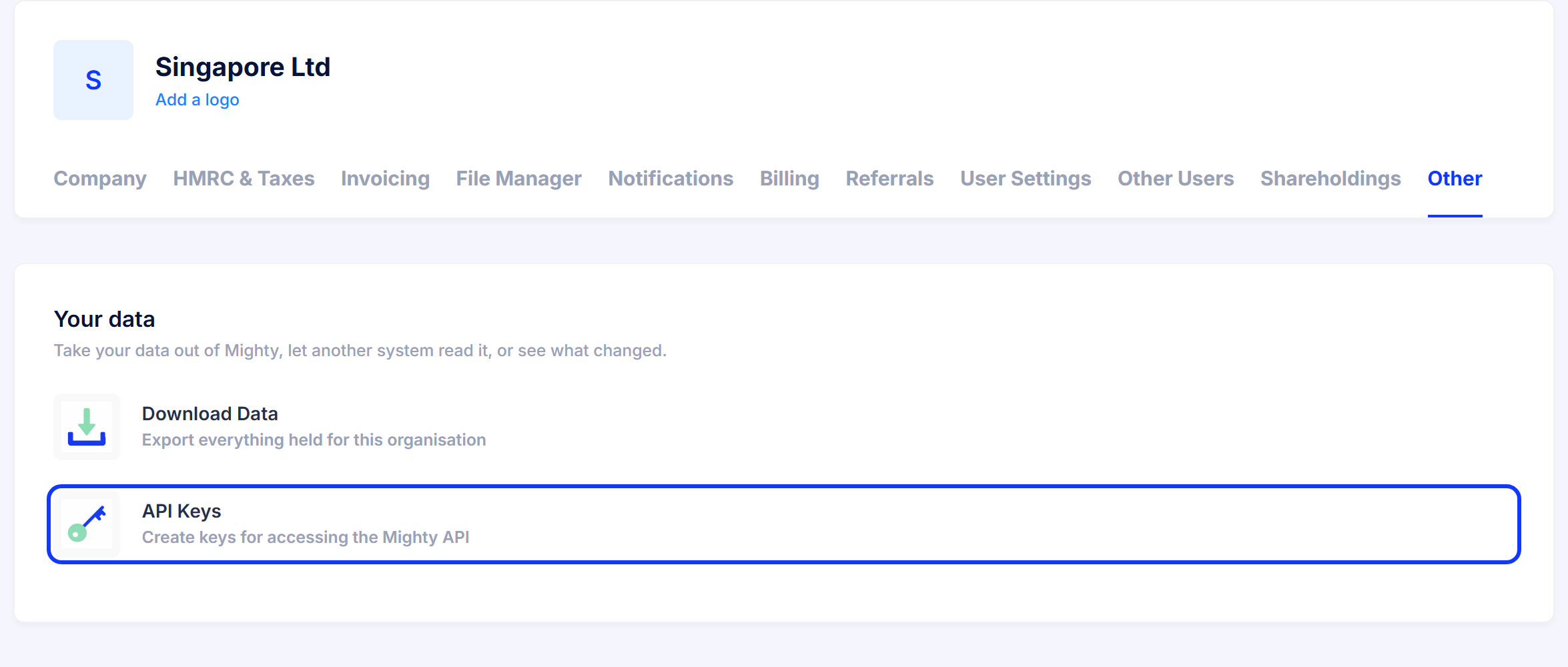
1. Open your organisation settings
In Mighty, go to Company Settings, then the Other tab, and choose API Keys.
2. Create a key
Click Create Key.
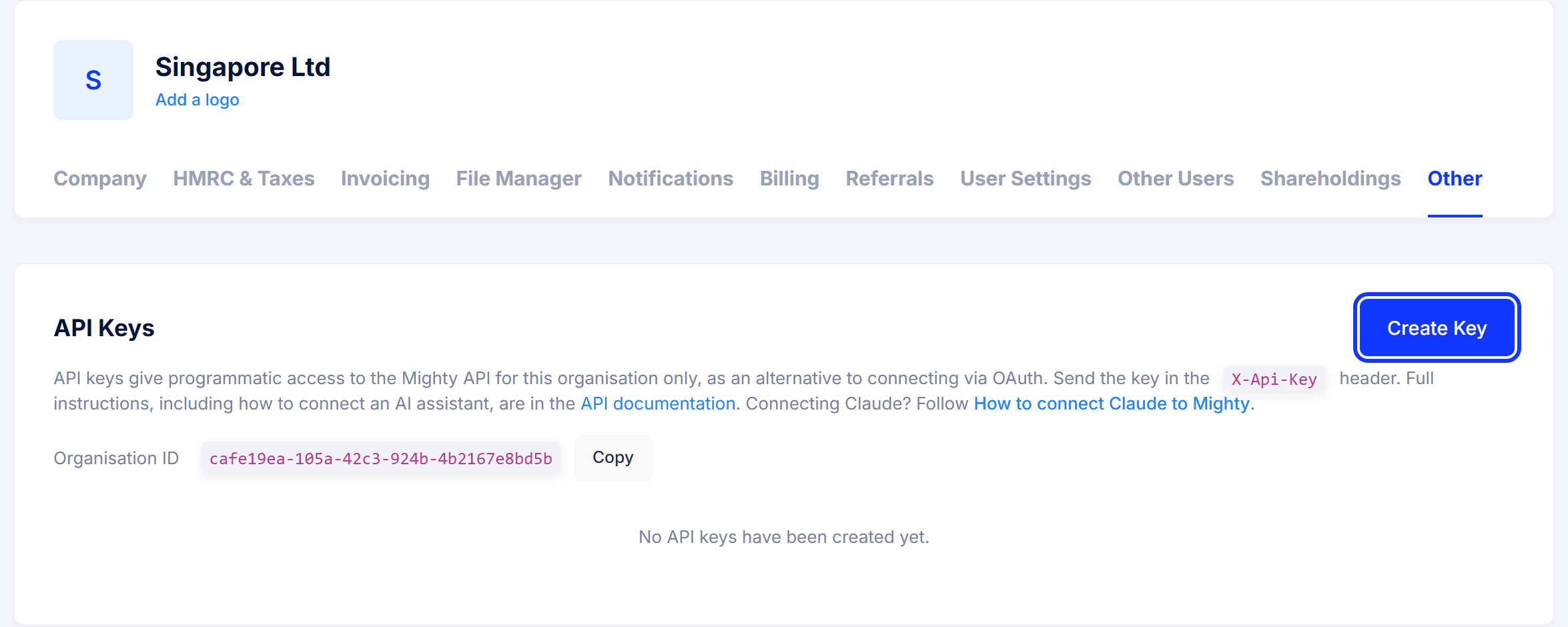
This page also shows your Organisation ID. You do not need it for an AI assistant, but you do need it for the REST API — there is a Copy button next to it.
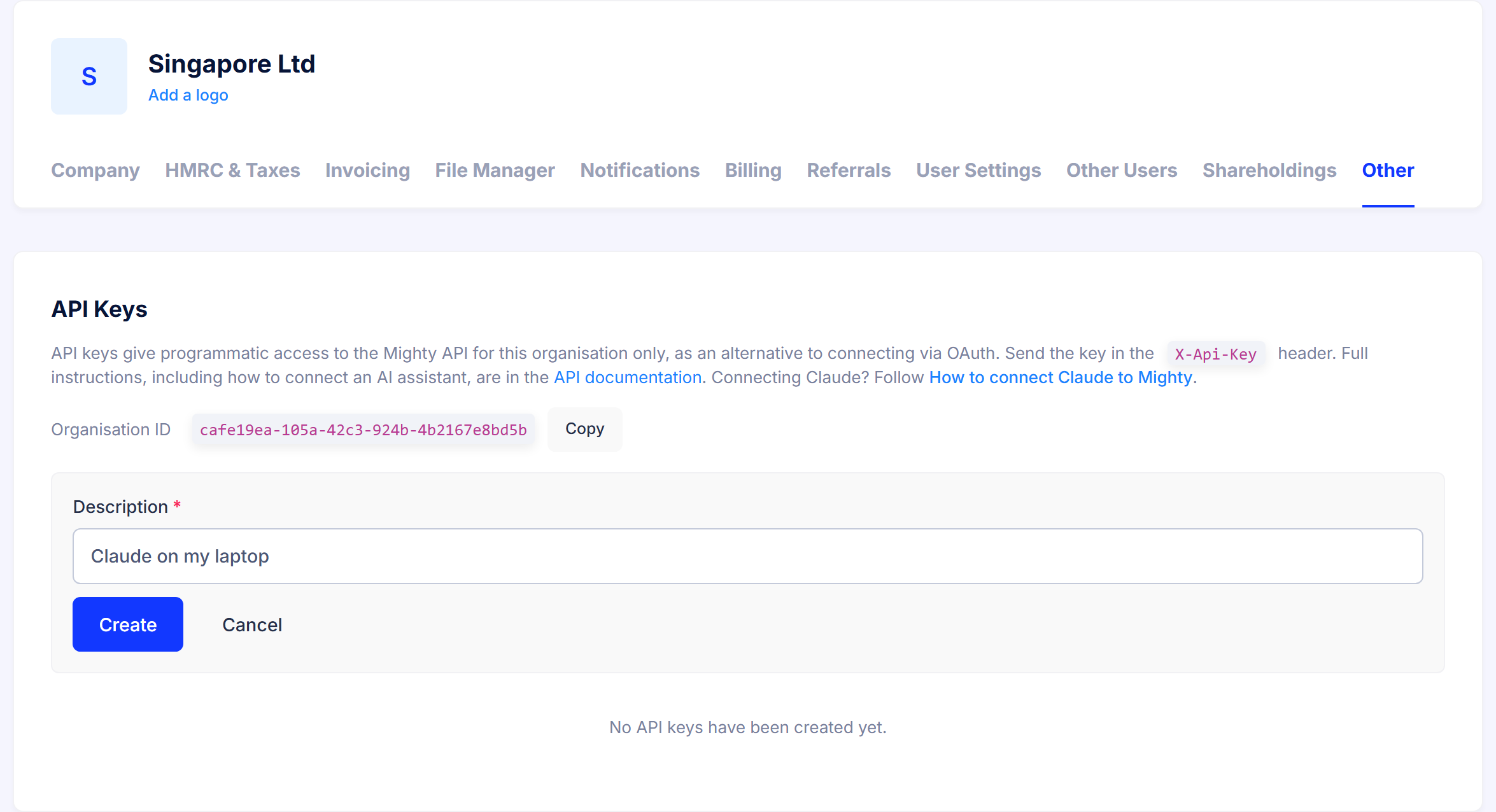
3. Give the key a name
Describe what the key is for, so you can tell your keys apart later and know what stops working if you revoke one. Something like Claude on my laptop is ideal.
4. Copy the key straight away
Your key is shown once. Copy it now and store it somewhere safe, such as a password manager.

If you lose it, you cannot look it up again — revoke it and create a new one.
Treat the key like a password. Anyone who has it can read your accounting data, create invoices and post mileage claims in your organisation. Do not email it, paste it into a chat message, or commit it to a code repository.
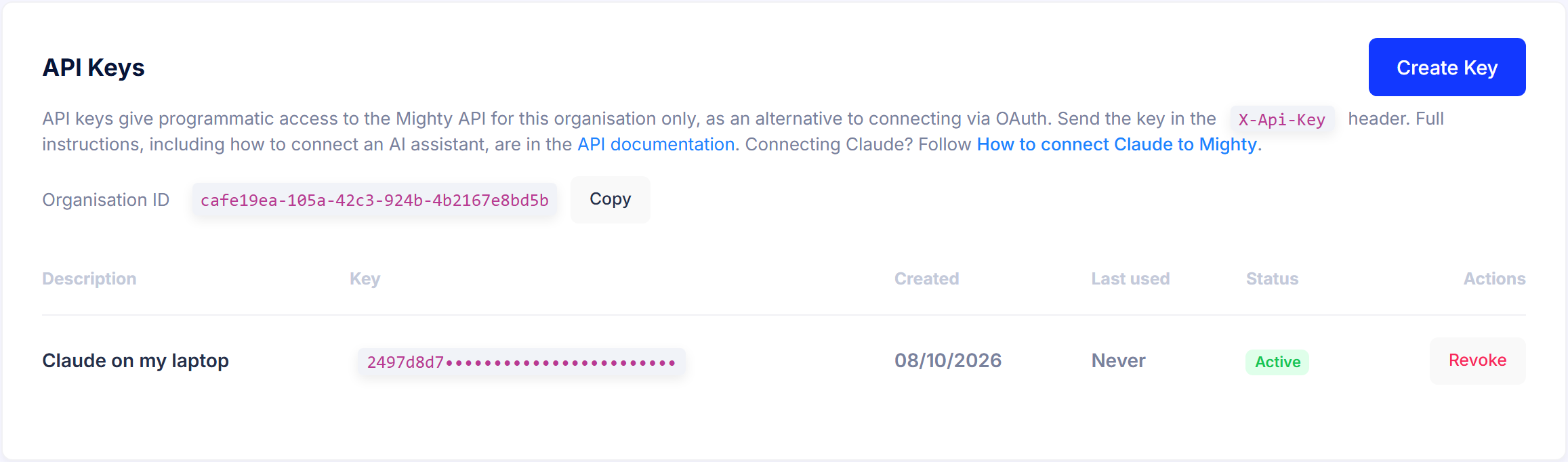
5. That is it
Your key is now listed as Active. Only the first 8 characters are ever shown again, which is enough to identify it. The list also shows when it was last used, so you can spot a key that nothing is using any more.
Step 2 — Connect your AI assistant
The MCP server lives at:
https://api.mightyaccounting.com/mcp
Send your key in an X-Api-Key header. If a tool can only send an Authorization header, that
works too — Authorization: Bearer YOUR_KEY is accepted.
Not every AI product can attach an API key to a connection. Those that cannot sign in to Mighty with OAuth instead: the user signs in, chooses a company and selects Allow, and no key is involved. Each route is set out underneath.
| Where you want to use it | How it connects |
|---|---|
| Claude.ai in a web browser | API key in a request header, or OAuth sign-in |
| Claude Desktop | The same custom connector |
| Claude Code (terminal) | API key — one command |
| Cursor, VS Code, Windsurf and other MCP clients | API key — server URL plus headers |
| Your own code, via the OpenAI API | API key |
| The ChatGPT app | OAuth sign-in |
| The Gemini app | OAuth sign-in (Google currently limits custom apps to US personal accounts) |
Claude.ai and Claude Desktop
Add Mighty as a custom connector. It belongs to your Claude account, so the steps are the same on the website and in the desktop app.
Go to Customize → Connectors, click + Add, then Add custom connector.
Enter a name, such as Mighty, and this server URL, then click Continue:
https://api.mightyaccounting.com/mcpUnder Authentication, choose No sign in.
Under Request headers, add a header named
X-Api-Keywith your key as the value.Click Add.
In a chat, click + under the message box, then Connectors, and switch the connector on.
On Team and Enterprise plans an owner adds the connector under Organization settings → Connectors, and members then click Connect. Everyone who connects shares that one key, and so the one Mighty organisation.
Anthropic is still rolling Request headers out. If your dialog does not show it, your Claude account does not have it yet — use Claude Code below in the meantime.
There is a plain-language version of these steps, written for people who are not developers, in the Mighty Knowledge Base: How to connect Claude to Mighty.
Claude Code
One command, then restart Claude Code:
claude mcp add --transport http --scope user mighty https://api.mightyaccounting.com/mcp --header "X-Api-Key: YOUR_KEY"
--scope user makes the connection available in every project and keeps the key in your own
settings. Do not use --scope project — that writes the key into a .mcp.json file in the
project folder, where it can be committed and shared.
Check it worked by running /mcp inside Claude Code — you should see mighty connected, with
twenty-six tools.
Claude Desktop, using a config file
Use the custom connector above where you can. If you would rather keep the connection in Claude
Desktop's config file, a small helper called
mcp-remote reaches the remote server and attaches your
key. You will need Node.js installed.
Open Settings → Developer → Edit Config, and add a mighty entry:
{
  "mcpServers": {
    "mighty": {
      "command": "npx",
      "args": [
        "-y",
        "mcp-remote",
        "https://api.mightyaccounting.com/mcp",
        "--header",
        "X-Api-Key:${MIGHTY_API_KEY}"
      ],
      "env": {
        "MIGHTY_API_KEY": "YOUR_KEY"
      }
    }
  }
}
Save the file and restart Claude Desktop.
Write
X-Api-Key:${MIGHTY_API_KEY}with no space after the colon, exactly as above. Claude Desktop on Windows mangles arguments that contain spaces, which silently breaks the header.
Cursor, VS Code, Windsurf and other MCP clients
Most other MCP clients take a server URL and a set of headers. Where the file lives differs between them — check your client's documentation — but the entry is:
{
  "mcpServers": {
    "mighty": {
      "url": "https://api.mightyaccounting.com/mcp",
      "headers": {
        "X-Api-Key": "YOUR_KEY"
      }
    }
  }
}
Your own code, using the OpenAI API
The Responses API can call a remote MCP server directly:
{
  "model": "gpt-5",
  "input": "What is my current VAT liability?",
  "tools": [
    {
      "type": "mcp",
      "server_label": "mighty",
      "server_description": "Mighty Accounting — dashboard figures, reports, sales invoices, bank categorisation and mileage claims.",
      "server_url": "https://api.mightyaccounting.com/mcp",
      "authorization": "YOUR_KEY",
      "require_approval": "never"
    }
  ]
}
OpenAI does not store the authorization value, so send it on every request.
ChatGPT and Gemini (OAuth sign-in)
The ChatGPT and Gemini apps cannot send an API key, so they sign in instead. Add a custom MCP
server with the address https://api.mightyaccounting.com/mcp and no credentials. The app discovers the rest:
- An unauthenticated request to
/mcpreturns401withWWW-Authenticate: Bearer resource_metadata="https://api.mightyaccounting.com/.well-known/oauth-protected-resource/mcp". - That document names this API as the authorization server; its metadata is at
https://api.mightyaccounting.com/.well-known/oauth-authorization-server. - The app registers itself at
https://api.mightyaccounting.com/connect/register(OAuth Dynamic Client Registration). Registration is open only for redirect addresses belonging to supported AI assistants. - The user signs in to Mighty, chooses one company and selects Allow. The app then exchanges the authorization code (PKCE with S256 is required) for an access token and a refresh token.
A connection is for one person and one company, like an API key. It appears on the API Keys page under Connected apps, where anyone who manages the company can revoke it; revoking takes effect on the app's next request. Step-by-step guides: How to connect ChatGPT to Mighty and How to connect Gemini to Mighty.
Using the REST API directly
Every REST route includes your organisation ID, which you will find on the API Keys page:
curl "https://api.mightyaccounting.com/api/v1/YOUR_ORGANISATION_ID/sales-invoices?page=1&pageSize=20" \
  -H "X-Api-Key: YOUR_KEY"
The organisation ID in the URL must be the one the key belongs to. Pointing a key at another
organisation returns 403 — a key can never reach data outside its own organisation.
List endpoints are paged (page, pageSize, default 20, maximum 100) and return the rows
alongside totalCount, totalPages and hasNextPage. Full details for every endpoint are below.
Reports
The three financial statements come back as flat rows, ready to drop into a spreadsheet:
curl "https://api.mightyaccounting.com/api/v1/YOUR_ORGANISATION_ID/reports/trial-balance?comparative=true" \
  -H "X-Api-Key: YOUR_KEY"
Swap trial-balance for profit-and-loss or balance-sheet. Each line carries accountName,
accountCode, debit, credit and balance, plus comparativeDebit, comparativeCredit and
comparativeBalance when you pass comparative=true.
Report on a whole accounting period with ?accountingPeriodId=... — list them at
/api/v1/YOUR_ORGANISATION_ID/accounting-periods — or on any window with ?from=2025-04-01&to=2026-03-31.
Pass neither and you get the most recent accounting period. Comparatives are the prior accounting
period, or the same window a year earlier when you asked for a date range.
Reports are limited to 20 requests a minute rather than 100, because each one may refresh the
figures first. Pass rebuildCache=false for a faster read of the figures as they were last
calculated, at the risk of them trailing the app.
Limits and troubleshooting
Requests are limited to 100 per minute per key.
| You get | What it means |
|---|---|
401 |
The key is missing, mistyped, or has been revoked. Check the X-Api-Key header. |
403 |
The key is valid, but the organisation ID in the URL belongs to a different organisation. |
429 |
More than 100 requests in a minute. Wait, then retry. |
400 |
Something in the request was invalid — the response body says what. |
503 |
A report rebuild is already running for your organisation. Wait a moment, then retry. |
A few specifics worth knowing:
list_sales_invoicestakesfromDateandtoDateas ordinary2026-04-30dates, as do the report endpoints and tools.- On a report,
balanceis signed with debits positive, so income, liabilities and reserves come back negative.debitandcreditare both positive, and only one of them is filled per line. - If a trial balance comes back with anything in
warnings, the accounts do not balance — treat the figures as unreliable until that is resolved in the app. - Invoices created through the API are drafts unless you explicitly ask for them to be raised, and bank categorisations are always drafts. Mileage claims are the exception: they have no draft state and are posted as soon as they are recorded.
- Records created this way are tagged with the assistant that created them, and are listed under AI Created Records in the Mighty admin area.
- Some tools on this server are internal to Mighty and need a staff-issued key; they are not listed to organisation keys and are not part of the public API.
Revoking a key
On the API Keys page, click Revoke next to the key. It stops working immediately, and anything using it loses access straight away. Revoking cannot be undone — create a new key instead.
Revoke a key as soon as you stop using it, or if it has been shared or exposed anywhere.